
PUBG MOBILE UC Payment Failed? Card, PayPal and Wallet Checks

For many PUBG MOBILE players, UC is used for Royale Pass, skins, crates, Lucky Spin, limited-time bundles, and event rewards. But when buying UC online, some players may see messages such as PUBG MOBILE UC payment failed, PUBG MOBILE payment declined, or checkout not completed.
If your PUBG MOBILE UC payment failed, first check whether money was charged and whether an order was created. If no money was charged, review your payment method and try again. If money was charged but the order failed, contact support before paying again. This is different from UC not received, which usually means the payment was completed but the order is still being processed or the in-game balance has not refreshed yet.
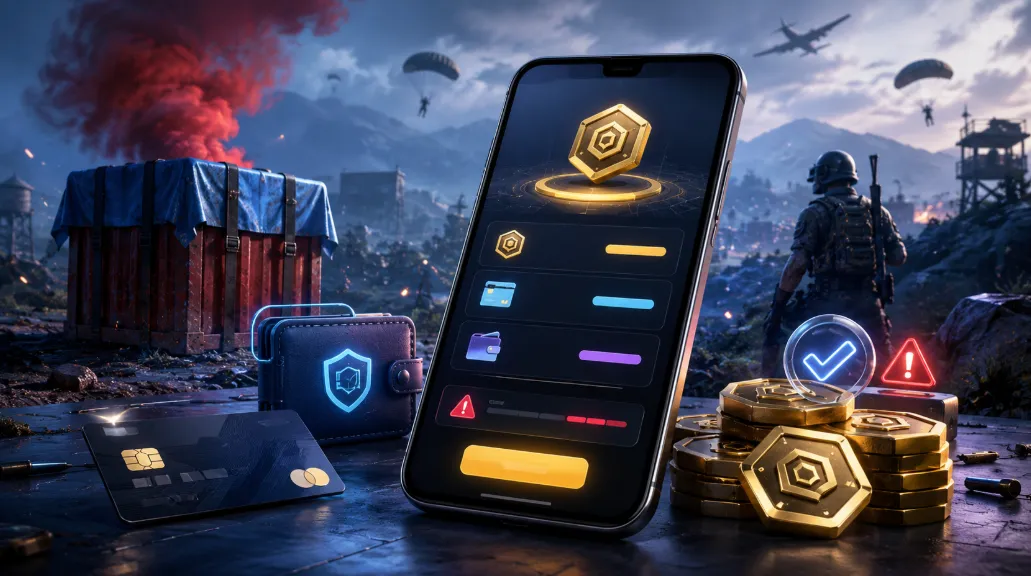
Why Does PUBG MOBILE UC Payment Fail?
A PUBG MOBILE UC payment issue can happen for several reasons. Common causes include insufficient card balance, payment limits, declined transactions from the bank or payment provider, PayPal account checks, wallet balance issues, expired checkout sessions, unstable network connection, or a payment method that is not available for the selected country, currency, or account environment.
Sometimes the problem is not caused by PUBG MOBILE UC top up itself or the top-up platform. Banks, PayPal, wallet apps, and payment processors may block or review a transaction for security reasons. This can happen more often with first-time payments, cross-border payments, larger orders, or repeated checkout attempts.
When a payment fails, do not immediately place the same order again. First, check three things: whether money was charged, whether an order was created, and whether the selected payment method is available.
First Check: Was Your Payment Completed?
If No Money Was Charged
If your card, PayPal, or wallet does not show any successful charge, the payment was most likely not completed. You can check your balance, payment limit, network connection, and whether the selected payment method is supported for the current order.
Before trying again, it is better to close the expired checkout page and restart the order process. Avoid refreshing an old payment page repeatedly, because an expired checkout session may not update the order status correctly.
If Money Was Charged but the Order Failed
If your payment account shows a charge but the order page still says failed, or the order was not created properly, do not pay again immediately.
In this situation, save your payment record first. Useful information includes the payment screenshot, transaction time, amount, payment method, and any order page details. Then contact customer support for a status check. If money was charged but the order status is unclear, repeated payment may create duplicate transactions.
Card Payment Failed or Declined
Check Balance, Limits, and Verification
If your PUBG MOBILE UC card payment failed, first check whether your card has enough balance or available credit. You should also confirm whether the single-payment limit or daily payment limit is high enough for the order.
Some cards require additional verification during online payment. This may include an SMS code, banking app confirmation, 3D Secure, or another security page. If the verification step is not completed, the card payment may be declined automatically. When the payment page redirects to your bank or card verification page, wait until the process finishes and returns to the order result.
Check Online or International Payment Settings
Some cards may block online payments, foreign currency payments, or cross-border transactions by default. If your card balance and limit look normal but the payment still fails, check your card settings or contact the card issuer to confirm whether the transaction was blocked.
If the same card keeps being declined, try another available method instead of repeating the same failed checkout. You can also review ManaBuy's payment methods by country and currency to see which payment options may be available for your selected currency.
PayPal Payment Failed When Buying PUBG MOBILE UC
Check Your PayPal Account and Funding Source
If you see a PUBG MOBILE UC PayPal payment failed message, first check whether your PayPal account is active and whether any additional verification is required. A PayPal payment can also fail because of the linked card, PayPal balance, account security review, or payment source restrictions.
If PayPal does not show a successful transaction record, the payment was probably not completed. If PayPal shows a charge but the ManaBuy order is not completed, contact support before paying again.
Do Not Close the Checkout Page Too Early
After completing a PayPal payment, the page may need to return to the merchant checkout page. If you close the page too early, lose connection, or do not wait for the redirect to finish, the order status may not sync immediately.
If you are unsure whether the payment went through, check your PayPal transaction record first, then review the order status.
Wallet Payment Failed or Not Confirmed
Check Balance and App Confirmation
If you use a wallet payment method, make sure the wallet balance is enough and that the payment was confirmed inside the wallet app. Some wallet payments require a password, biometric check, app confirmation, or extra approval step.
If the in-app confirmation is not completed, the order may remain unpaid, failed, or unconfirmed.
Check Whether the Payment Page Expired
Some wallet payments use a temporary payment page, QR code, or session. If the page is left open for too long, the session may expire. In that case, refreshing the old page may not work.
The safer option is to return to the order page, restart checkout, and select an available payment method again.
What to Check Before Paying Again
Before trying another PUBG MOBILE UC payment, check these points carefully:
- Was money charged from your card, PayPal, or wallet?
- Was a ManaBuy order created successfully?
- Is the selected payment method available for your country, currency, or account?
- Has the checkout page expired?
- Have you tried paying too many times in a short period?
If no money was charged, you can check the reason and try again. If money was charged but the order status looks abnormal, contact support first instead of placing another order. This helps avoid duplicate payments and makes order checking easier.
What If Payment Succeeded but PUBG MOBILE UC Did Not Arrive?
If the payment was successful and the order was created, but the UC has not appeared in your PUBG MOBILE account, the issue may no longer be a payment failure. It may be related to delivery time, order processing, UID accuracy, or in-game balance refresh.
In that case, you can read this PUBG MOBILE UC not received guide to check the next steps, including order status, UID confirmation, game refresh, and what information to provide when contacting support.
How to Reduce PUBG MOBILE UC Payment Issues
Check Your Order Before Payment
Before starting your PUBG MOBILE UC top up, confirm the UC package, PUBG MOBILE UID, and order amount. Payment issues usually happen during checkout, but clear order information can also reduce later handling problems.
If you are not sure how the full order process works, read the PUBG MOBILE UC top up guide before trying again. It explains how to choose a UC package, enter your UID, complete payment, and check your UC balance after the order is processed.

Use an Available Payment Method
Available payment methods may vary by country, currency, and account environment. Before paying, use the payment options shown at checkout and avoid forcing a method that has already been declined several times.

Keep Your Order and Payment Records
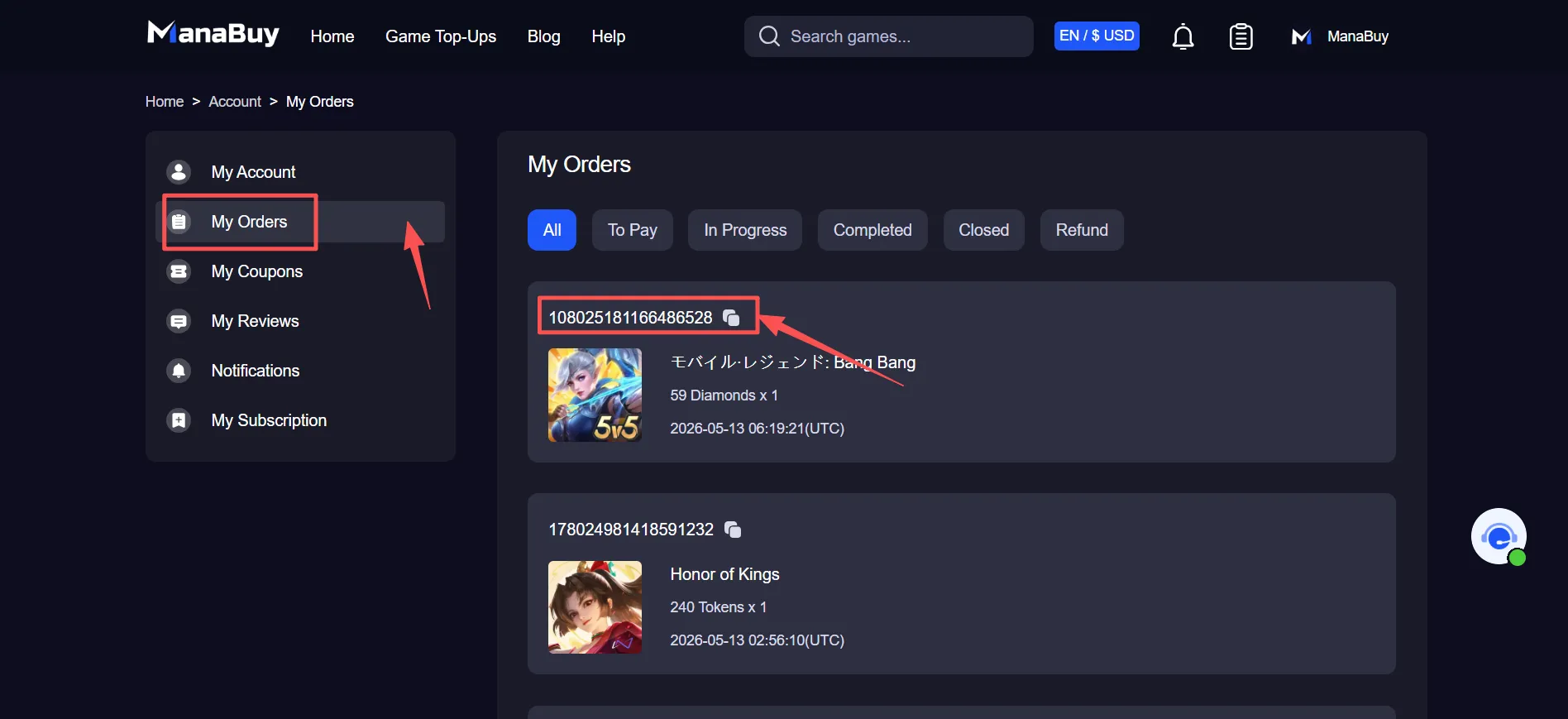
After payment, keep your order number, payment screenshot, and transaction record. If the payment succeeds but the order looks abnormal, or if UC does not arrive later, these details can help support check the issue faster.
FAQ About PUBG MOBILE UC Payment Failed
Why did my PUBG MOBILE UC payment fail?
Your payment may fail because of insufficient balance, payment limits, incomplete verification, PayPal or wallet account issues, an expired checkout page, network interruption, or a payment method that is not available for the order.
What should I do if my card payment is declined?
Check your card balance, payment limit, online payment permission, international payment settings, and security verification. If the same card still fails, try another available payment method.
Does a PayPal payment failure mean my order failed?
Not always. First check whether PayPal shows a successful transaction. If there is no successful record, the payment was likely not completed. If PayPal shows a charge but the order is not completed, contact support for a status check.
Can I place another order after a failed payment?
If no money was charged, you can check the issue and try again. If money was charged but the order status is unclear, do not pay again immediately. Contact support first.
What should I do if payment succeeded but UC did not arrive?
This is usually a delivery or order-processing issue rather than a payment failure. Refresh the game, check your order status and UID, then contact support if the UC still does not appear.
Final Thoughts
When your PUBG MOBILE UC payment fails, the most important step is to confirm the payment status first. If no money was charged, you can check the payment method and try again. If money was charged but the order looks abnormal, contact support before making another payment.
Whether you use a card, PayPal, or wallet, checking your balance, limits, verification steps, and available payment options before checkout can reduce payment declined, checkout failed, and wallet not confirmed issues. With the right checks, your PUBG MOBILE UC purchase can be smoother and easier to complete.
If you have confirmed that no duplicate payment was created and want to try again, start from the PUBG MOBILE UC top up page, confirm your UID and UC package, then choose an available payment method at checkout.


Copyright © FUTURE OUTLOOK TECHNOLOGY LIMITED.Company Registration No.: 77374965 All rights reserved.UNIT 135,1/F.,143 WAI YIP STREET,KWUN TONG HK