
Quick answer: To top up Arknights on ManaBuy, open the current Arknights product page, choose the pack value that matches the live offer on your account, complete checkout, and provide the requested Login Method, Account, Character Name and Player UID details. Keep the order page open, stay available if login approval or a verification code is needed, and do not enter the game while the order is processing. After completion, sign in to the same bound account and verify the delivered item or balance.
A smooth Arknights top-up depends on matching three things before payment: the correct bound account, the correct platform identity, and the exact pack shown in the live game store. The email address alone is not enough when multiple login methods or game profiles are involved. A pack with a similar price is not necessarily the same offer either.
This guide turns the current ManaBuy Arknights flow into a practical checklist. It covers the fields you need, how purchases synchronize between PC and mobile, how to match an “Any Pack” denomination, what to do during processing, and how to troubleshoot a result without creating a duplicate order.
Why use ManaBuy for Arknights top-up
ManaBuy puts supported Arknights options, the required account-information fields, payment, order tracking and order-page support into one flow. That is useful when you already know which account and pack you want and prefer to manage the purchase from a single order record.
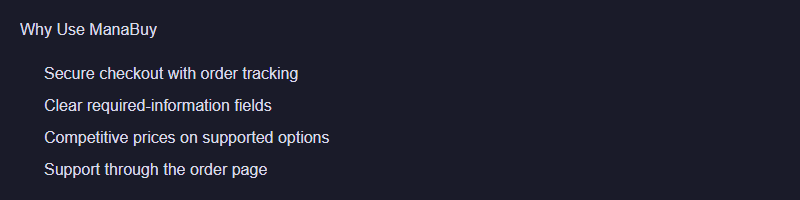
The current ManaBuy product page summarizes the four practical benefits attached to the Arknights order flow.
How to top up Arknights on ManaBuy
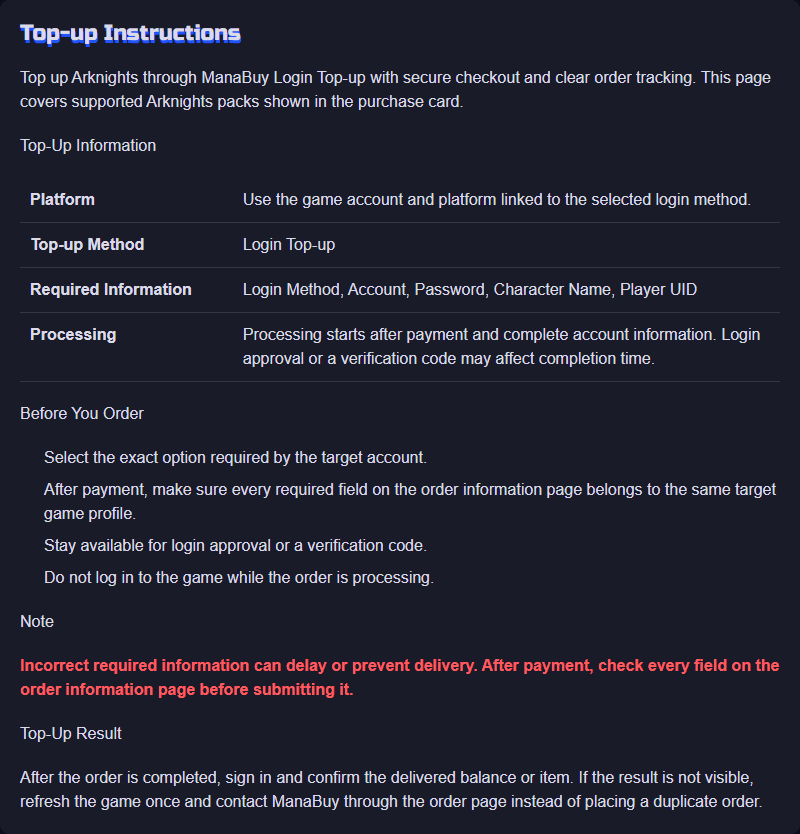
This exact product-page instruction card is the working reference for the current ManaBuy order process.
What account details do you need
Prepare the target account before opening checkout. The values should all point to one Doctor profile. If any item is uncertain, pause and reopen the target profile rather than relying on an old note or screenshot.
| Field | What to enter or verify | Common mistake |
|---|---|---|
| Login Method | The bound method that opens the intended Arknights profile, such as the currently supported account identity shown in the game. | Entering an email but selecting a different identity route. |
| Account | The account identifier attached to the selected login method. | Using another profile saved on the same phone or PC. |
| Character Name | The Doctor name exactly as displayed on the target profile. | Using a nickname from Discord, a squad name or an older account name. |
| Player UID | The numeric UID shown on the target Arknights account. | Copying a UID from another region, reroll or guest profile. |
| Platform | The PC, Android or iOS environment where you confirmed the live account and pack. | Assuming every device session is connected to the same bound account. |
| Pack | The current live offer, denomination, contents and purchase limit. | Matching only the artwork or a similar displayed value. |
Match the bound account and platform first
Arknights can be played across PC and mobile, but synchronization follows the bound game account—not the physical device. Open the account with the intended Operators and progress, then compare the Doctor name and Player UID before placing the order.
If you have used several login methods, do a simple identity check: sign out, choose the method you plan to submit, reopen the profile, and confirm the same Doctor name, UID, Operators and story progress. This prevents a familiar email or saved device session from pointing to the wrong profile.
What syncs between PC, Android and iOS
The Arknights PC Version FAQ says game progress, Operators, resources and other account data are shared across PC, Android and iOS when the same account is used, with guest accounts as the exception. It also states that purchase records and purchased content synchronize across those platforms for the same account.
The key phrase is the same account. A purchase does not follow a device, an installation or an email address that opens a different game profile. Before buying on one platform for use on another, open both clients and verify that the Doctor name and Player UID match.
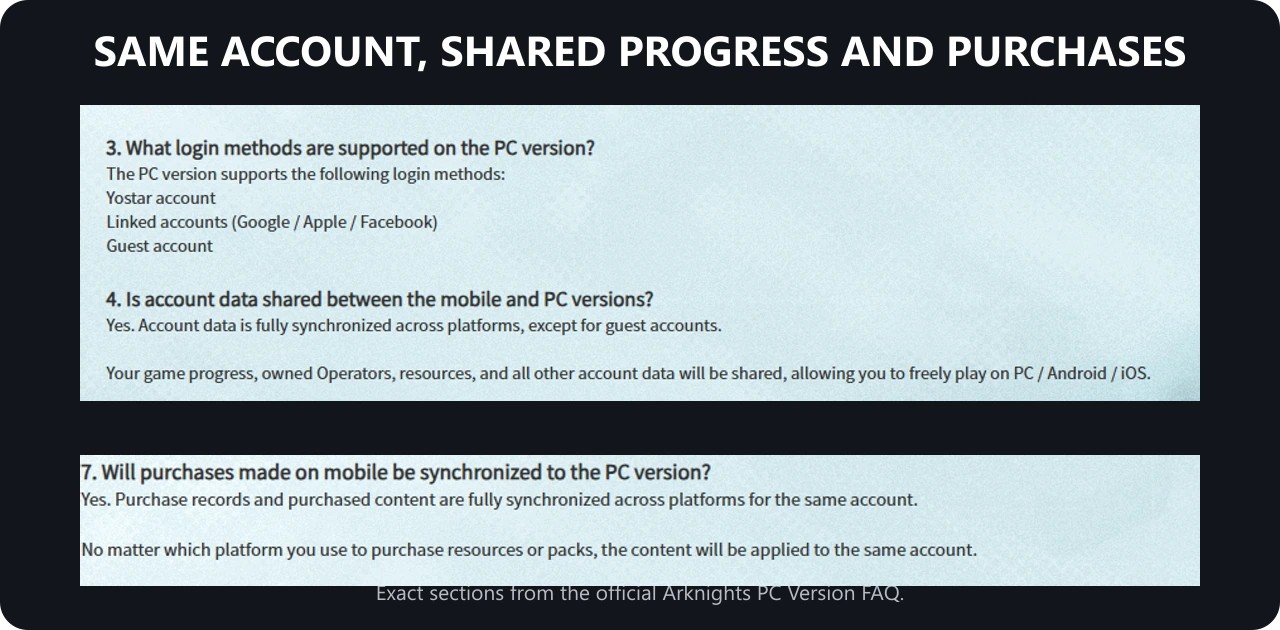
These PC FAQ excerpts provide the account-sync rule used in this checklist: supported platforms share data and purchases when they open the same bound account.
How to find the correct Character Name and Player UID
Open the target account rather than copying information from chat history. The Character Name is the Doctor name displayed on the profile. The Player UID is the numeric identifier shown with that profile. ManaBuy's current instructions point buyers to the ID on the login screen and the UID below the Doctor name in the lobby or profile.
- Sign in with the bound method that contains the intended progress.
- Open the main lobby or profile and copy the Doctor name exactly.
- Copy the Player UID from the same profile.
- Compare both values with the order fields before submitting.
- Keep a private reference screenshot, but do not share passwords, recovery information or payment details in public channels.
How to match an “Any Pack” option
ManaBuy may list denomination-style products with names such as “Any … Pack.” Treat the denomination as a matching tool. It does not replace the full pack description shown inside Arknights. Two offers with similar values can have different contents, limits or eligibility.
Immediately before checkout, open the intended offer on the target account and record its name, included items, live value, purchase limit and duration if one is shown. Then choose the ManaBuy option that corresponds to that live offer. Avoid using an old YouTube frame, another region's shop, or a screenshot from a different account as the final pack reference.
Use this account-and-pack decision table
| Check | Ready to continue when | Pause when |
|---|---|---|
| Bound login | The selected method opens the intended Doctor profile. | The same email opens another identity route or profile. |
| Character Name and UID | Both values come from the target account in the current session. | Either value comes from an old note or another account. |
| Platform sync | PC and mobile show the same bound account identity. | One side is a guest account or shows different progress. |
| Live pack | Name, value, contents and limits match the current offer. | Only the picture or approximate value appears similar. |
| Order state | No unresolved order exists for the same target and pack. | A previous payment is still pending or processing. |
| Availability | You can stay available for approval and avoid logging in during processing. | You cannot complete a requested verification step. |
What happens after payment
Processing begins after payment and after the required information is complete. Depending on the account, login approval or a verification code may be needed. Watch the same order page and respond only through the intended order workflow.
Do not enter Arknights while the top-up is being processed. Simultaneous access can interrupt the session and delay fulfillment. Wait for the completed state, then reopen the same bound profile and check the delivered result.
How to verify the delivered result
Start with identity, then check value. Confirm the Doctor name and Player UID before looking for the pack, subscription, currency or item. If the purchase changes a first-purchase bonus or a limit, verify that state as well.
- Keep the order number and payment record.
- Open the same bound account used for the order.
- Check the delivered balance or item against the selected pack.
- Record the final order status before closing the order page.
- If something does not match, contact support from that existing order instead of paying again.
What to do if the purchase is missing
- Check the order status. Pending, processing and completed require different next steps.
- Recheck the account. Compare Login Method, Character Name and Player UID with the submitted order.
- Restart once. Close Arknights, reopen it and sign in to the same bound profile.
- Check the selected pack. Look for the correct item or balance, including any purchase-limit change.
- Use the existing order. Send the order number and a focused result screenshot through the order-page support path.
What to do if you entered the wrong information
Contact ManaBuy through the existing order as soon as you notice the mistake. Identify the exact field that is wrong—Login Method, Account, Character Name, Player UID or pack—and provide the correct value only through the intended support workflow.
Do not create another order to compensate for the first one. Whether information can be corrected depends on the current processing state, so the order timeline matters. A concise message with the order number, incorrect field and corrected field is more useful than sending multiple partial updates.
Arknights top-up checklist

Related Arknights and payment guides
Arknights top-up FAQ
Why use ManaBuy for Arknights top-up?
The current ManaBuy page combines supported pack options, clear required-information fields, checkout, order tracking and order-page support. It is convenient when you already know the exact target account and live pack.
What information is needed for an Arknights top-up?
Prepare the Login Method, Account, Character Name and Player UID shown on the target profile, plus any additional field displayed on the live order page. Every value should point to the same account.
Do Arknights purchases sync between mobile and PC?
Yes, when both platforms use the same bound account. The Arknights PC FAQ says purchase records and purchased content synchronize across PC, Android and iOS for the same account. Guest accounts are the exception to full account synchronization.
How do I choose the correct Arknights pack?
Open the offer on the target account immediately before checkout. Match the denomination, name, contents, limit and duration to the current ManaBuy option instead of relying only on artwork or a similar price.
Can I log in while a ManaBuy order is processing?
The current instructions say not to enter the game during processing. Stay available for login approval or verification, wait for completion, and then sign in to verify the result.
What should I do if my Arknights top-up is missing?
Check the order status, Login Method, Character Name, Player UID and selected pack. Restart the game once on the same bound account, then use the existing ManaBuy order page for support. Do not pay again while the first order is unresolved.
Sources and further help
- ManaBuy Arknights top-up product page — current benefits, required fields, order and processing instructions.
- Arknights PC Version FAQ — supported login methods, guest-account exception and same-account purchase synchronization.
Pack options, prices, payment methods and availability can change. Check the target account, live ManaBuy product page and checkout before each purchase.