

Quick answer: ManaBuy currently uses Login Top-up for supported Sword x Staff packs. Before payment, confirm that the Login Method, Account, Password, Character Name and Player UID all belong to the same game profile, then match the selected option to the exact live in-game pack. Submit the requested information only through the paid order workflow, stay available for login approval or a verification code, do not enter the game while processing is active, and change the shared password after completion. Finally, sign in yourself and verify the intended balance or item before closing the order.
A Sword x Staff top-up is not identified by one number alone. The service must open the correct linked account, confirm the intended character and purchase the correct live package. A valid Player UID paired with the wrong Google or Facebook account is still an identity mismatch.
This guide turns the current ManaBuy product-page requirements into one repeatable checklist. Pack names, availability, prices, discounts, payment methods and processing conditions can change, so the live product card, checkout and order status remain decisive.
What ManaBuy currently needs for Sword x Staff top-up
The current ManaBuy page lists five required fields: Login Method, Account, Password, Character Name and Player UID. Processing starts after payment and complete information. A login approval or verification code may be needed depending on the linked account.
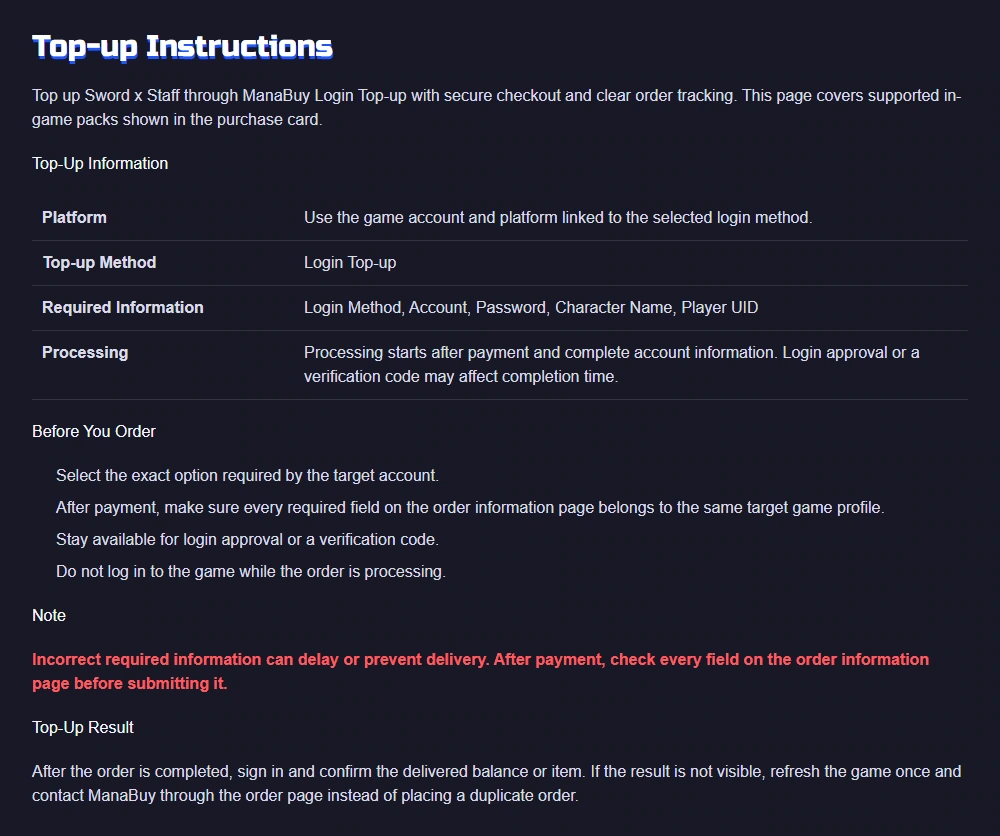
These fields answer different questions. Login Method says which identity provider opens the account. Account and Password provide access to that linked login. Character Name helps recognize the target character. Player UID is the strongest in-game identifier. The selected pack defines what should be purchased after the correct profile is open.
Make all five fields point to one game profile
| Field | What it identifies | How to verify it | Common mismatch |
|---|---|---|---|
| Login Method | The linked sign-in route, such as Google or Facebook. | Use the provider that opens the intended Sword x Staff profile on a fresh sign-in. | Selecting Google while the target character is linked to Facebook. |
| Account | The email, username or identifier used by that provider. | Compare the active provider account before opening the game. | A second Google or Facebook account remains active on the device. |
| Password | Access to the selected provider account. | Confirm it works before the order; change it after completion. | Using an old password, app password or unrelated game password. |
| Character Name | The visible in-game character. | Copy it from the same profile screen as the UID. | Entering an older nickname, another server character or a display name from a different screen. |
| Player UID | The numeric in-game profile identifier. | Copy it directly from the target Character Status or profile screen. | Typing from memory, dropping digits or copying a friend's ID. |
| Pack | The exact item or denomination to be purchased. | Open the offer on the target account and compare its live name, contents, value and limit. | Assuming two similarly priced packs contain the same rewards. |
Best identity test: open the intended character using the selected login method, then copy Character Name and Player UID during that same session. Do not assemble the order from old notes taken from different profiles.
How to find the Sword x Staff Character Name and Player UID
Open Sword x Staff and enter the profile or Character Status screen for the character you want to fund. The Character Name is shown beside the character icon, while Player ID appears in the upper profile area. Use the copy control when available instead of retyping a long number.
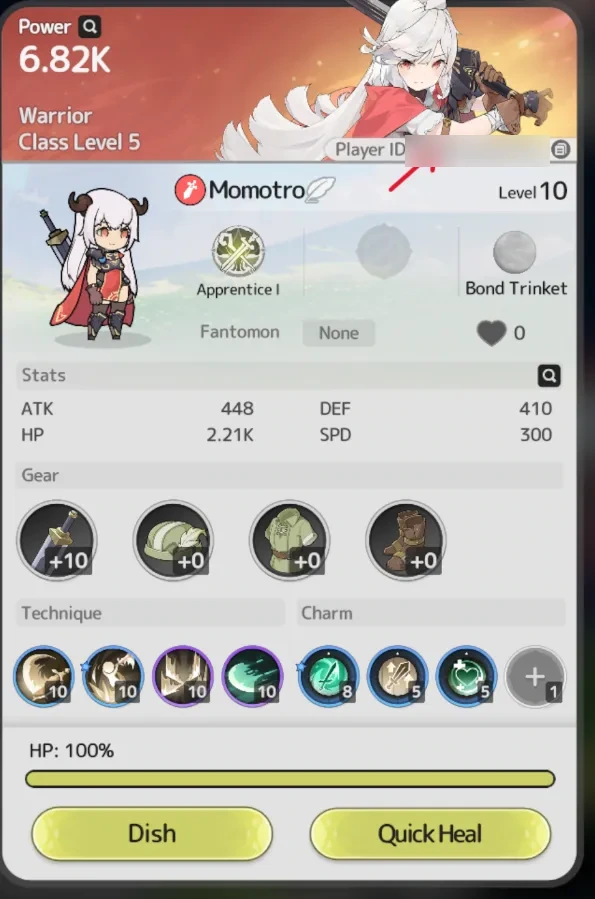
- Open the target character rather than stopping at the account or server selector.
- Enter Character Status, profile or the current equivalent screen.
- Copy Player UID/Player ID using the interface control when shown.
- Copy the Character Name exactly, including capitalization, spaces or symbols.
- Return to the order form without switching characters or linked accounts.
If the profile layout changes, do not search for a familiar color or icon. Look for the explicit Player UID or Player ID label and verify the character name beside it.
Choose the login method that actually opens the target character
The login method is part of the account identity. A Google account and a Facebook account can use the same email address while still representing different sign-in routes. Select the provider that currently opens the intended Sword x Staff character.
Before ordering, sign out if necessary and test the route from the game's login screen. Confirm that the provider account shown by the device is the intended one, then check the Character Name and Player UID after the game loads. If the account is a guest profile or uses a different provider than the current ManaBuy field allows, stop and contact support through the product page before paying.
Do not “correct” a login mismatch with a UID. Player UID confirms the in-game profile, but Login Top-up still needs the linked provider account that can open that profile.
Match the ManaBuy option to the live in-game pack
The current ManaBuy purchase card lists value-based options such as “Any ... Pack.” The denomination helps match the supported price tier; it does not define every item inside the offer. Open the intended pack on the target account and compare the live pack name, contents, price, purchase limit and duration before choosing an option.
Do not rely on a screenshot from another account or an old event. First-purchase tags, regional prices, limited offers and account-specific availability can differ. The final payable amount follows the live ManaBuy SKU and checkout, while the item decision should follow the live offer on the target Sword x Staff profile.
Use one fresh reference. If support requests evidence of the intended pack, capture it from the same character and session used to copy the UID.
Why players use ManaBuy for Sword x Staff top-up
ManaBuy puts the currently supported options, account requirements, checkout, order status and support path in one workflow. The product page states the required fields before processing, so buyers can identify missing account information before an order is handled.
The page lists the login route, account, password, Character Name and Player UID in one place.
The product card shows what can be ordered now instead of relying on an old package list.
Available payment methods and final amounts follow the current checkout environment.
Payment, processing, completion and support remain connected to the same order.
The important advantage is operational clarity: the target profile, product choice and help path are connected. That reduces the need to reconstruct the transaction from separate chats or screenshots when a field needs correction.
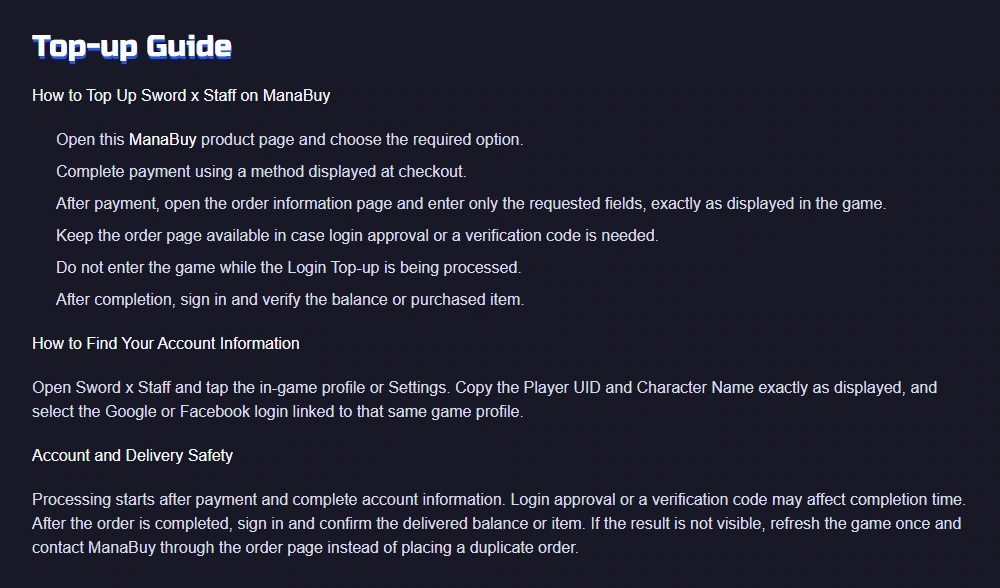
How to top up Sword x Staff on ManaBuy
- Open the live product page. Review the current supported options and Login Top-up information.
- Choose the exact option. Match it to the pack shown on the target game profile.
- Complete checkout. Use a payment method displayed for the selected currency and device.
- Open the paid order information page. Enter only the fields requested there.
- Verify one identity chain. Login Method, Account, Character Name and Player UID must describe the same profile.
- Stay available. A login approval or verification code may be requested through the order workflow.
- Remain logged out of the game. Wait until the order is marked complete.
- Verify delivery yourself. Sign in, check the correct UID and confirm the balance or item.
What to do during Login Top-up processing
Keep the order page available and watch its current status. If a login approval or verification code is requested, provide it only inside the intended order workflow. Do not post credentials or codes in public comments, social media or an unrelated message.
Do not enter Sword x Staff while the order is processing. Simultaneous access can interrupt the fulfillment session or make the account state unclear. Avoid switching passwords or unlinking the login method until the order has either completed or support has confirmed that processing stopped.
After completion, change the shared password. Then sign in through the same provider, open the target character and verify the result. This closes the temporary access step and confirms that the delivered item belongs to the intended profile.
How to verify the top-up result
Start with identity before looking for the item. Confirm the Login Method, Character Name and Player UID on the loaded profile. Then check the exact balance, pack, pass, entitlement or inventory location expected from the order.
If the result is not visible, refresh the game once and check the same profile again. Review the ManaBuy order status and the selected option. Contact support through that order with the order number, target UID and a current game screenshot. Do not place a second order while the first result is unresolved.
Sword x Staff top-up troubleshooting
| Problem | First check | Best next action | Avoid |
|---|---|---|---|
| Cannot open the target character | Login Method and active Google/Facebook account | Stop the order and correct the linked login information through the order page. | Trying random accounts or sending new credentials outside the workflow. |
| UID and Character Name do not match | The live Character Status/profile screen | Copy both again during one session on the intended character. | Combining a saved UID with a newly selected character. |
| Verification request does not arrive | The provider's active account, notifications, email folders and order message | Tell support through the order page and wait for the current instruction. | Generating repeated codes or sharing one publicly. |
| Processing is delayed | Payment, required fields, approval request and current order status | Keep the first order open and provide the missing information there. | Paying again before the first order is resolved. |
| Order is complete but item is missing | Correct UID, selected option and expected inventory location | Refresh once, capture the live result and contact support through the completed order. | Assuming a similar pack or another character received it. |
| Wrong pack was selected | The live game offer and order option | Contact support immediately; do not assume a completed digital purchase can be changed. | Choosing a nearby denomination without confirmation. |
Final pre-payment checklist
The selected provider opens the intended account.
Character Name and Player UID were copied from the same live profile.
Name, contents, value, limit and duration were checked on the target account.
The selected currency, payment method and final amount are acceptable.
You can stay logged out and respond to approval or code requests.
You can change the shared password after completion.
Review the live Sword x Staff options and the current Login Top-up requirements before paying. Keep the target profile and order page available until delivery is verified.
Top up Sword x StaffRelated Sword x Staff and payment guides
- Use the Sword x Staff beginner guide for classes, Techniques, Charms, gear, Cart production and first-week priorities.
- Browse the Sword x Staff Hub for the maintained game guide cluster.
- Check ManaBuy payment methods by country and currency; the live checkout still determines final availability.
Sword x Staff top-up FAQ
What information is required for Sword x Staff Login Top-up?
The current ManaBuy page lists Login Method, Account, Password, Character Name and Player UID. All fields must identify the same target game profile.
Where can I find my Sword x Staff Player UID?
Open the intended character and enter Character Status, profile or the current equivalent screen. Copy Player UID/Player ID directly from the labeled field rather than typing it from memory.
Should I use Google or Facebook login?
Use the provider that currently opens the target Sword x Staff character. Test the route and verify Character Name plus Player UID before ordering.
Can I play while ManaBuy processes the order?
No. The current instructions say not to enter the game during processing. Wait until the order is marked complete, then sign in and verify the result.
May a login approval or verification code be required?
Yes. Keep the order page available and respond only through the intended order workflow. Never publish a code or send it through an unrelated channel.
What should I do if the purchased item is not visible?
Confirm the correct UID and selected option, refresh the game once and review the order status. Contact ManaBuy through the existing order instead of placing a duplicate order.
Sources
- Current ManaBuy Sword x Staff product page and instructions
- ManaBuy Sword x Staff beginner guide
- LDShop public Sword x Staff guide, used only for the attributed game UI example; sample Player ID digits are masked.
Supported packs, prices, discounts, login requirements, payment methods and processing conditions can change. Verify the live game profile, product page, checkout and order status before every purchase.