
MLBB’s New Built-In Screen Recorder: How to Use It
You can now record your best moments in Mobile Legends: Bang Bang with the new Built-In Screen Recorder. Many players use it to capture highlights, share clips on social media, and skip third-party apps.
No need to worry about video quality or missing out on fun gameplay.
If you want to capture your coolest skins in action but need to unlock them first, check out the Mobile Legends Bang Bang Top Up page on ManaBuy.
Using the Built-In Screen Recorder
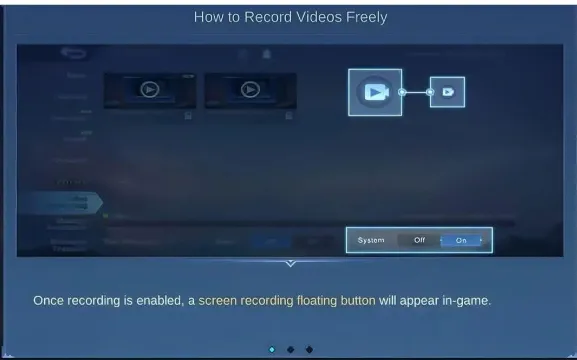
Accessing the Recorder in Settings
You can find the Built-In Screen Recorder right inside the Mobile Legends: Bang Bang settings. Here’s how you get started:
- Log in to your MLBB account.
- Look for the cog icon at the top right corner of your screen, next to the mail icon, and tap it.
- On the left side, you’ll see a list of options. Find and select the "Free Recording" tab.
- Here, you can choose if you want to record matches or moments outside of matches by toggling the options.
Tip: If you don’t see the Free Recording tab, make sure your game is updated to the latest version. The Built-In Screen Recorder is available in recent updates, so older versions might not have it.
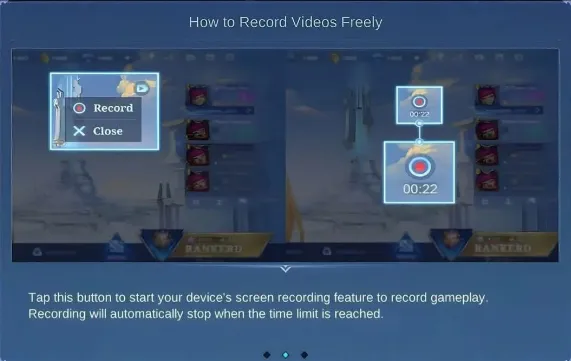
Starting and Stopping Recording
Once you’ve enabled the Built-In Screen Recorder, you can start capturing your gameplay with just a few taps. Follow these steps:
- Open the screen recording tool from your app drawer if needed.
- Tap the settings button to check or change your recording preferences.
- Launch Mobile Legends and go to the Replays interface.
- When you’re ready to record, slide down your notification bar and tap the recorder button to start.
- To stop recording, slide down the notification bar again and hit the Stop button.
You don’t have to leave your game or use any extra apps. The Built-In Screen Recorder lets you focus on your match while it saves your best plays. For tips on creating high-quality highlight reels, see our Tips & Tricks section.
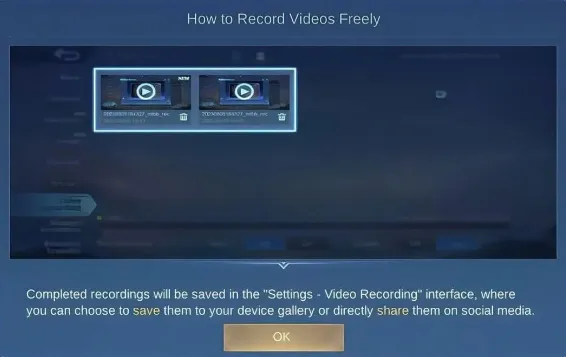
Adjusting Recording Options
You can tweak a few settings to make your recordings look just the way you want. Inside the Free Recording tab, you’ll find options to:
- Turn on or off in-match and out-of-match recording.
- Adjust video quality for higher or lower resolution.
- Choose if you want to record audio from the game, your microphone, or both.
Note: Higher video quality will use more storage space. If you want to save space, pick a lower resolution.
The Built-In Screen Recorder gives you control over your clips, so you can share your highlights without any hassle.
Saving and Sharing Clips
Saving Your Recordings
After you finish recording with the Built-In Screen Recorder, you can find your clips right inside the game. MLBB saves your videos in a special folder. You just need to open the "Gallery" or "Replays" section from the main menu. Here, you can watch your saved matches or highlights anytime. If you want to keep a copy on your phone, tap the download or save button. This moves the video to your device’s storage, so you can access it even when you are offline.
Sharing to Social Media
Sharing your best moments is easy. MLBB lets you post your clips straight to social media. Just pick the video you want to share from your gallery. Tap the share icon, and you will see options for Facebook, WhatsApp, or even sending it to friends in chat. You can add a caption or tag your teammates. This makes it simple to show off your skills or funny moments.
When you share gameplay, make sure your real name or personal info does not show up in the video. Some players worry about privacy if their real names appear on screen.
- Protect your MLBB account from hackers and scammers.
- Keep your in-game purchases safe by not sharing personal details.
- Your account progress could be at risk if you share sensitive info.
Feature Limitations
The Built-In Screen Recorder has a few limits. You might notice that some videos have a maximum length, so longer matches may need more than one clip. The game saves videos in common formats, but some older phones may not support every feature. Audio recording works for both game sounds and your voice, but you need to check your settings before you start. Always double-check your privacy settings before sharing clips online. For more on maximizing your device's performance while recording, check out general Mobile Gaming Guides on ManaBuy.
You can capture every epic moment with the Built-In Screen Recorder. Try these quick tips for best results:
- Check your settings before each match.
- Save your favorite clips right away.
Don’t forget to share your highlights with friends. Everyone can use this feature and show off their skills!
FAQ
How do I find my saved recordings?
You can open the Gallery or Replays section in MLBB. Your videos show up there. Tap to watch or save them to your phone.
Can I record both game audio and my voice?
Yes! You can turn on both options in the Free Recording tab. This lets you capture game sounds and your own commentary.
Why can’t I see the screen recorder feature?
Check if your game is updated. Some older versions do not have this feature. Update MLBB in your app store to get it.












Copyright © FUTURE OUTLOOK TECHNOLOGY LIMITED. All rights reserved.UNIT 135,1/F.,143 WAI YIP STREET,KWUN TONG HK